
Create one event
Use + New event from /coach/events for a single event. For repeating
events, use Create a series instead — much
faster than typing the same thing eight times.
Step by step
- From
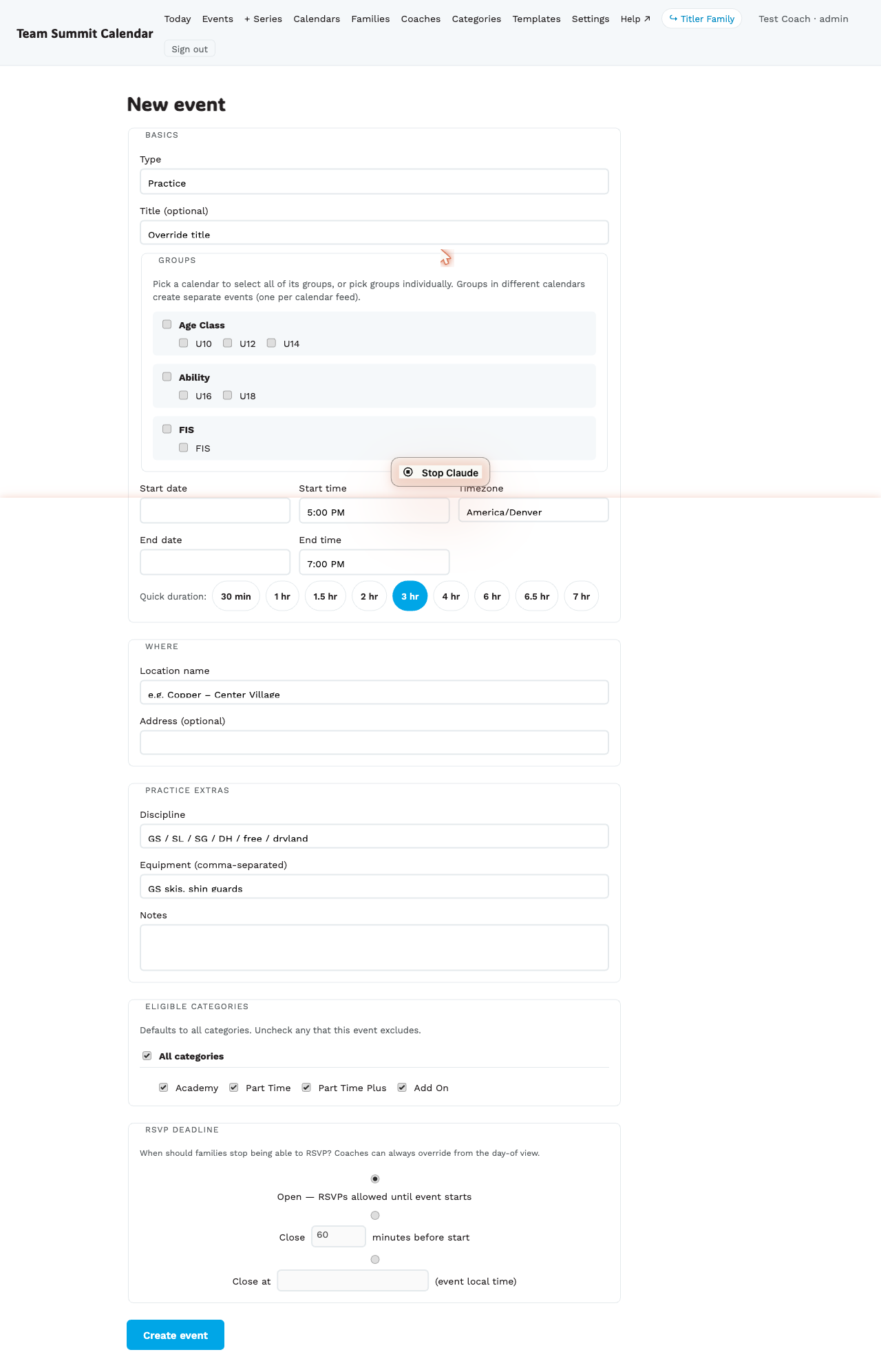
/coach/events, tap + New event in the top right. - Pick the type: Training / Race / Conditioning / Other / No Training (see OFF days).
- (Optional) Discipline — it sits directly under Type, since it’s usually the next thing you know about a session.
- For Race events, the Race block opens right underneath: Category, Gender, how many races that day and the registration link (see Race-day details). You don’t type the race name; it’s built from those — as is every other event’s, see How events are named. These sit next to the discipline they belong with, and the series form matches.
- (Optional) a title, if you want to override the generated one.
- Select groups — one or many. All groups must belong to the same calendar. Picking groups across two calendars is allowed — it creates one event per calendar, so each calendar feed carries its own copy.
- Set the start and end date+time. Use the duration pills (30 min through 7 hr) for quick adjustment. Or tick All day to drop the times altogether — a Race arrives with All day already ticked.
- (Optional) Timezone — sits with the dates and defaults to the club’s own zone. Change it for the trip that isn’t in Mountain time; the family’s page and their subscribed calendar both show the right local hour.
- (Optional) Venue and Location. Venue is the resort — Copper, Keystone — and it’s the one that appears in the event’s name. Location is the spot within it: Center Village, Sundown. See Venue, location and address.
- (Optional) Equipment, Notes. Equipment is one item per line — don’t separate with commas.
- (Optional) Set an RSVP deadline — see RSVP deadlines.
- Save. You land on the new event’s edit page, ready to add anything else. (Creating across two calendars lands you back on the events list with both new events flagged.)
How groups fan out
Picking groups across two calendars is fine — you get one event per calendar, so each calendar’s feed carries its own copy. (Practical example: U16 + FIS are both on Ability, so they make one event. U16 + U10 (Age Class) makes two.)
If your event spans groups in the same calendar, one event row is created with multiple group attachments. The family page shows it once per family even if multiple of their athletes match.
What happens when you save
- The event is created.
- An audit row gets written.
- A “new event” notification fans out to every family with an athlete in the event’s groups: phone push (if subscribed) + Telegram channel post (if within 48h) + the family page banner.
Editing
Hit Edit → from the event card on the events list, or open
/coach/events/<id>/edit directly. See Edit a single event.
Duplicating an event
When you duplicate an event and then change its date, an absolute RSVP deadline moves with it and keeps its distance — a deadline five days before the race stays five days before the new one.
↩ Reuse from another event… at the top of the form copies an existing event — including one that hasn’t happened yet, which matters while you’re laying out a season and nearly everything worth copying is still ahead.
Browsing opens on the last month and everything upcoming. Typing in the search box drops the window entirely, so a prior season is still reachable by name.
It carries the date as well as everything else, so you land near the original rather than back at today — a duplicate is almost always close to the one it came from. Change the date and the times come with it, including the length of a multi-day race.
Nothing is created until you press the button, so opening a duplicate on the same date just proposes one; it doesn’t make one.
The things tied to the original day do clear: the meeting time, race-timing moments, and an absolute RSVP deadline. Those need re-entering.
Pasting into Notes
Paste from an email, a document, or another event and the bold, italic, underline and highlight come with it.
Anything the notes field can’t express — colours, fonts, tables, links — arrives as plain text.