
Mobile setup (iPhone)
On the mountain, you’ll use the coach app way more than you think. Get it on your home screen as a PWA (Progressive Web App) so it opens standalone — no Safari chrome — and supports push notifications.
This must be done from Safari on iOS, not Chrome. (Apple-imposed limitation; explained at the bottom of this page.)
Step by step
- Open
ts.onsnowlive.com/coach/todayin Safari on your iPhone. - Sign in if needed (magic link from your email — see Signing in).
- Tap the Share button (square with arrow up) at the bottom of Safari.
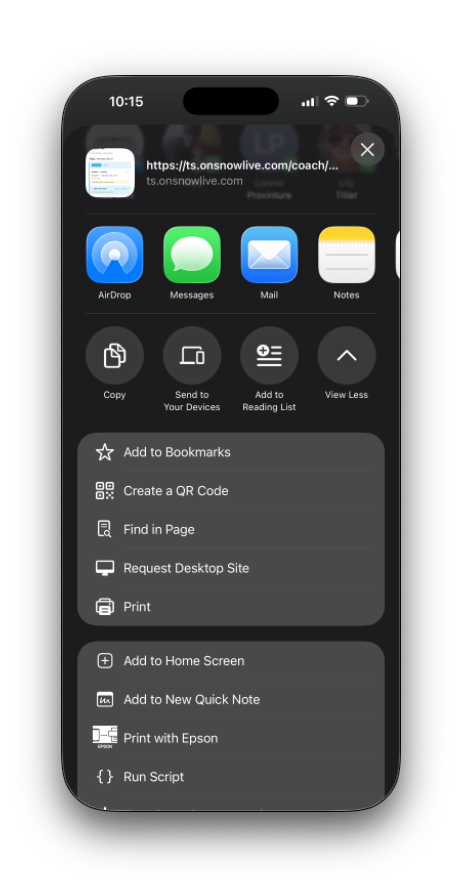
- Scroll down and tap Add to Home Screen.
- The name will be “TS Coach” — leave it as is, then Add. If you also have a child in the program you will be installing a second app, your family page, which arrives as “TS Family”. Keeping both suggested names is what makes the two icons tellable apart on your home screen.
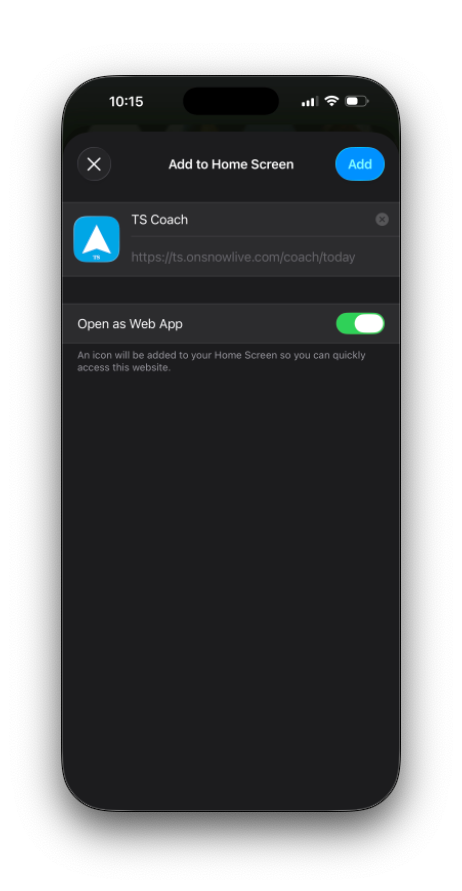
- You’ll see a new icon on your home screen. Tap it.
- The app opens standalone (no URL bar, no Safari tabs). The home screen you land on is the Today view — your at-a-glance roster for the day.
You’re set. From now on, just tap the home-screen icon.
The mobile nav — a sticky bottom bar
On any phone (whether you installed the PWA or just opened the site), the nav is a four-icon bottom bar, always visible:
| Icon | Where it takes you |
|---|---|
| 🌤 Today | The on-hill view: today + tomorrow’s events, attendance, coach notes. |
| 🎿 My shifts | The events you are assigned to, next four weeks. |
| 💬 Messages | Your inbox + sent messages. Shows a red dot if you have unread. |
| ≡ More | Slide-up sheet with everything else (all events, new event/series, my availability, settings, admin tools if you’re an admin, sign out). |
A cyan bar over the active icon tells you what section you’re in.
What’s in the More sheet?
Tap More in the bottom bar. The sheet that pops up is organized so your most-common needs are at the top:
- Create — All events · + New event · + New series
- Personal — My shifts · My availability · Settings & notifications
- Admin (if you’re an admin) — Schedule grid, Families, Coaches, Calendars & groups, Categories, Message templates, Feedback inbox
- Your family page — a separate app — for coaches who are also parents. It is a second app with its own icon and its own notifications; see If you’re a coach and a parent.
- Help & documentation ↗ (this site) · Sign out
Tap anywhere outside the sheet to close it.
Opened the link from Gmail or Telegram?
Those apps open links in their own built-in browser, which has no Add to Home Screen. If it isn’t in the Share menu, tap ··· (or the Safari icon) and choose Open in Safari, then start again from step 1. The Today view shows a note at the top when it can tell this is what’s happened.
Why Safari and not Chrome?
On iOS, every browser (Chrome, Firefox, Edge) is forced to use Apple’s WebKit under the hood, but only Safari can produce a real standalone PWA from Add to Home Screen. Chrome iOS adds a shortcut that opens Chrome instead.
After the install, you can use any browser for normal browsing — the home-screen icon is independent.
Android
On Android Chrome, push notifications work without an install — visit the site, tap Enable on this device in Settings, grant permission, done. Adding to home screen is optional but recommended for the standalone feel.