
Signing in
The Team Summit coach app uses magic links — there’s no password to remember. You enter your email; we send you a one-time link; clicking it signs you in.
Your first time: the invite email
When an admin adds you, you get an email from the club titled “you’re set up as a coach — two steps to get going”. Open it on a computer and click Sign in and get started: that link signs you in on its own and lands you on Getting started. It works once and lasts seven days; if it has expired, ask the admin who sent it to resend.
Every time after that, sign in as below.
Step by step
- Open
ts.onsnowlive.com/coachin your browser.
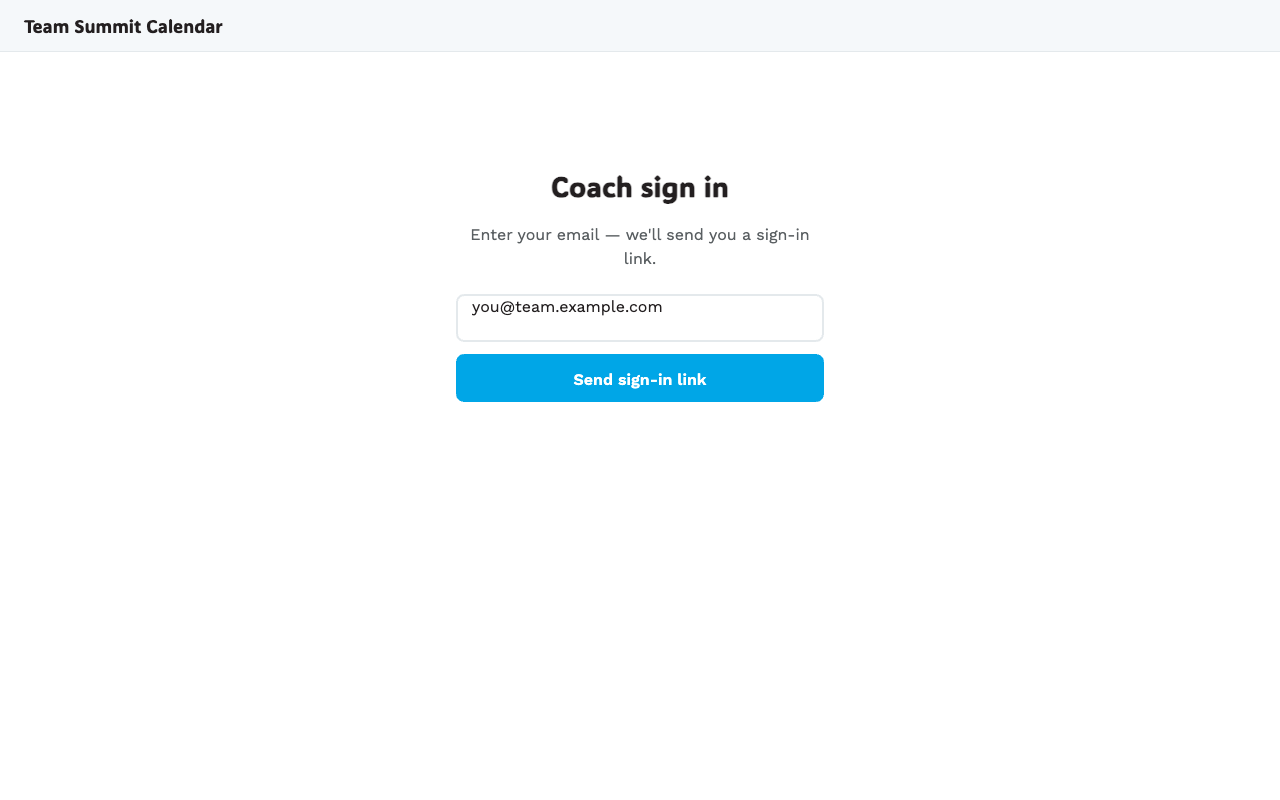
- Type your email address (the one the club admin registered you with).
- Click Send sign-in link.
- Check your email. Subject line is “Sign in to Team Summit Calendar”. The link is valid for 15 minutes and works once.
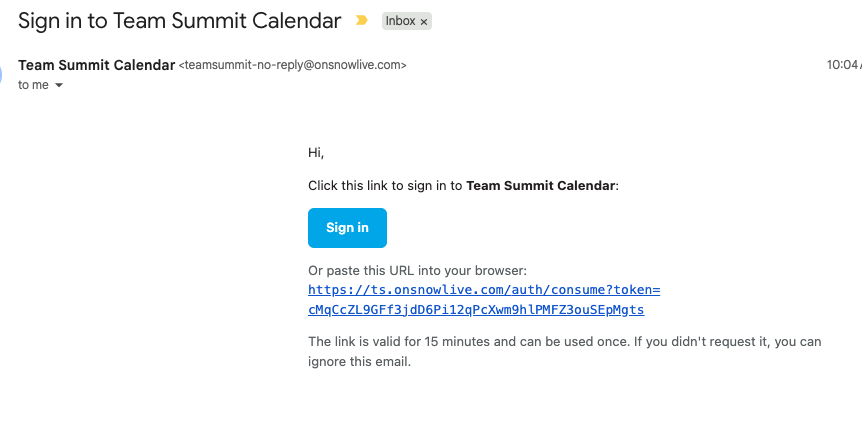
- Tap the Sign in button in the email. It opens the coach app already signed in.
That’s it. From now on, this browser stays signed in until you sign out manually or the session cookie expires.
If you don’t see the email
- Check the spam folder.
- The “From” address is
[email protected]. - If you’ve typed your email and 30 seconds have passed with nothing in spam either, ask an admin to check the address on your row. A sign-in request for an address we don’t recognise does nothing on purpose, so a typo in the roster looks exactly like this.
Sign in from a different device
Same flow — open ts.onsnowlive.com/coach, enter your email, click the
link in the new email on that device. The link only opens the device
where you tap it; you can sign in on multiple browsers/phones.
Sign out
On a laptop, Sign out is in the top-right corner. On a phone, tap ≡ More in the bottom bar and it’s at the foot of the sheet. Your session cookie is cleared — that’s the only cookie involved; the sign-in link itself lives server-side and is consumed the moment you use it.