
Enable phone push
Phone push notifications light up your lock screen when something needs your attention — parent quick-messages, event edits by other coaches, and the optional daily morning brief.
Prerequisites
- iPhone: you must have added the coach app to your home screen from Safari first (see Mobile setup (iPhone)). Push only works from the installed PWA on iOS.
- Android / desktop: no install required — works in any modern browser.
Step by step
- Open the coach app. On a laptop, Settings is in the top-right corner; on a phone, tap ≡ More in the bottom bar → Settings & notifications.
- Scroll to Phone notifications.
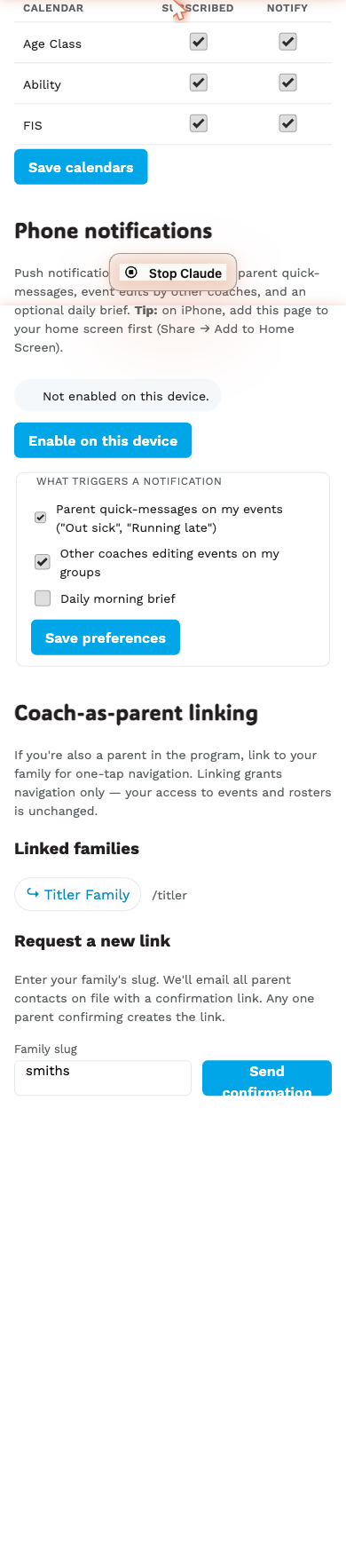
- Tap Enable on this device.
- Your browser asks for notification permission — tap Allow.
- The state line flips to “Push is enabled on this device.” with a green dot.
You’re set. Want to verify? Have a colleague ping you with a quick message on one of your events; you should buzz within a couple seconds.
What you’ll get notifications for
By default, three of the four triggers are on:
- ☑ Parent quick-messages on my events — “Out sick”, “Running late” templates that families tap.
- ☑ Other coaches editing events on my groups — when someone else changes an event you have access to.
- ☑ Shifts I’m added to or removed from — when an admin puts you on an event’s roster, or takes you off it.
- ☐ Daily morning brief — off by default; turn it on to receive a one-shot summary push every morning at your chosen time.
Each is a checkbox you can toggle. Tap Save preferences after changes.
Disable on this device
Same panel — tap Disable on this device. Your subscription is removed from the server and Notification.permission is left in the “granted” state (you can re-enable later without re-granting).
Each device is independent
If you sign in on multiple devices (laptop + phone), each one has its own push subscription. Enabling push on your phone doesn’t enable it on your laptop. Subscriptions are per-device by design.